Guide
How to set up, use and switch off meldungen.app.
About the name: Meldungen is German for raised hands – people asking to speak.
meldungen.app joins a Zoom meeting as an ordinary participant and shows in large type who has raised their hand. It runs in the browser on any device, usually a tablet in front of the person chairing. From Zoom it reads the participant list: display names, whose microphone is on, and who the host is. It gets nothing else. It sends no video or audio and records nothing.
1. Setting up
You set it up once. After that, the meeting ID is all you need. There is nothing to install.
Authorize the meeting once
- Open the display and enter the meeting ID.
- The display does not know this meeting yet. Tap Authorise now.
- Sign in to Zoom with the account that starts the meeting.
- Confirm. Zoom sends you back, and the display joins the meeting.
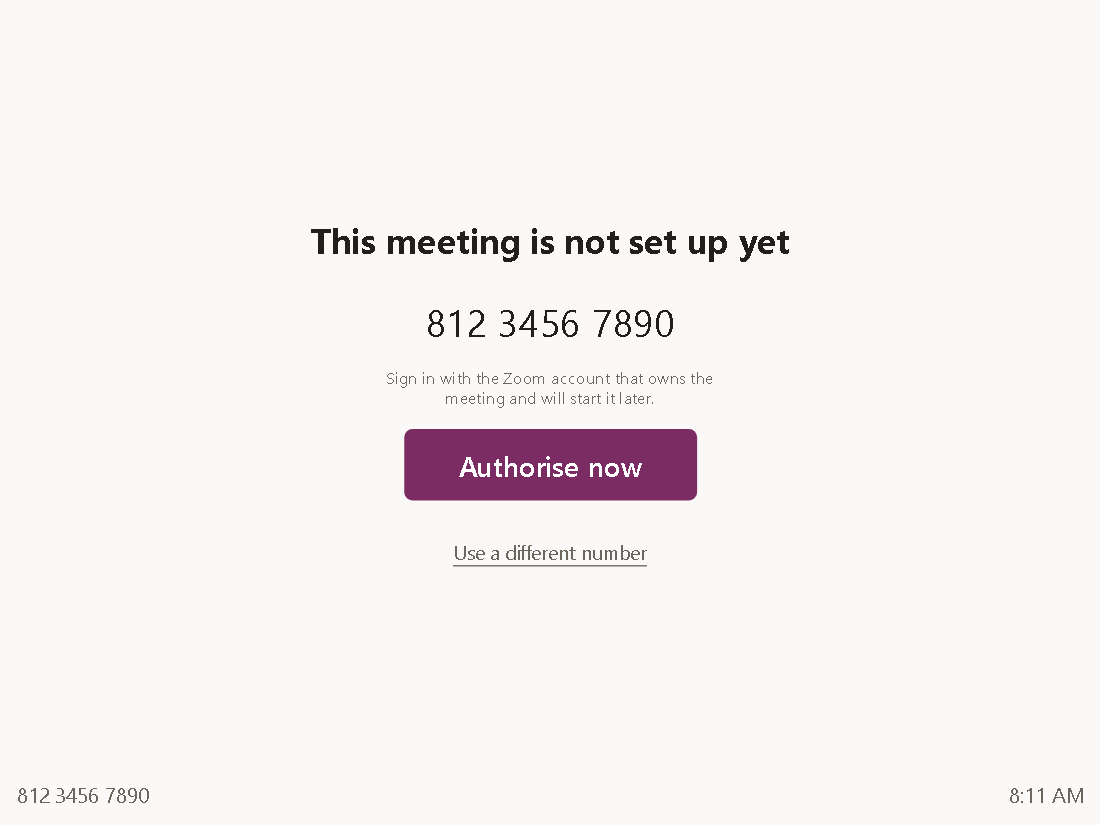
You can also authorize in advance on a laptop, without opening the display: meldungen.app/connect. Each further meeting ID is authorized once in the same way.
2. Using it
Joining
Open the display, enter the meeting ID and tap Join. The passcode is only needed if the meeting has one.
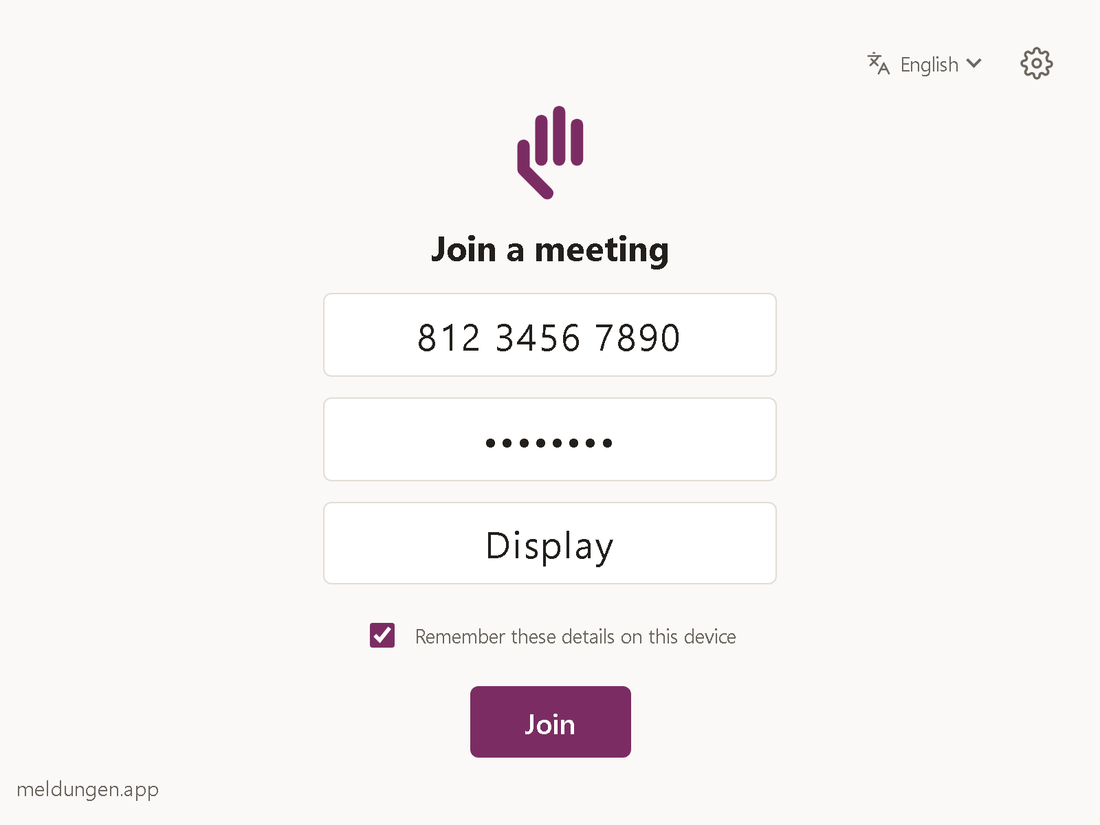
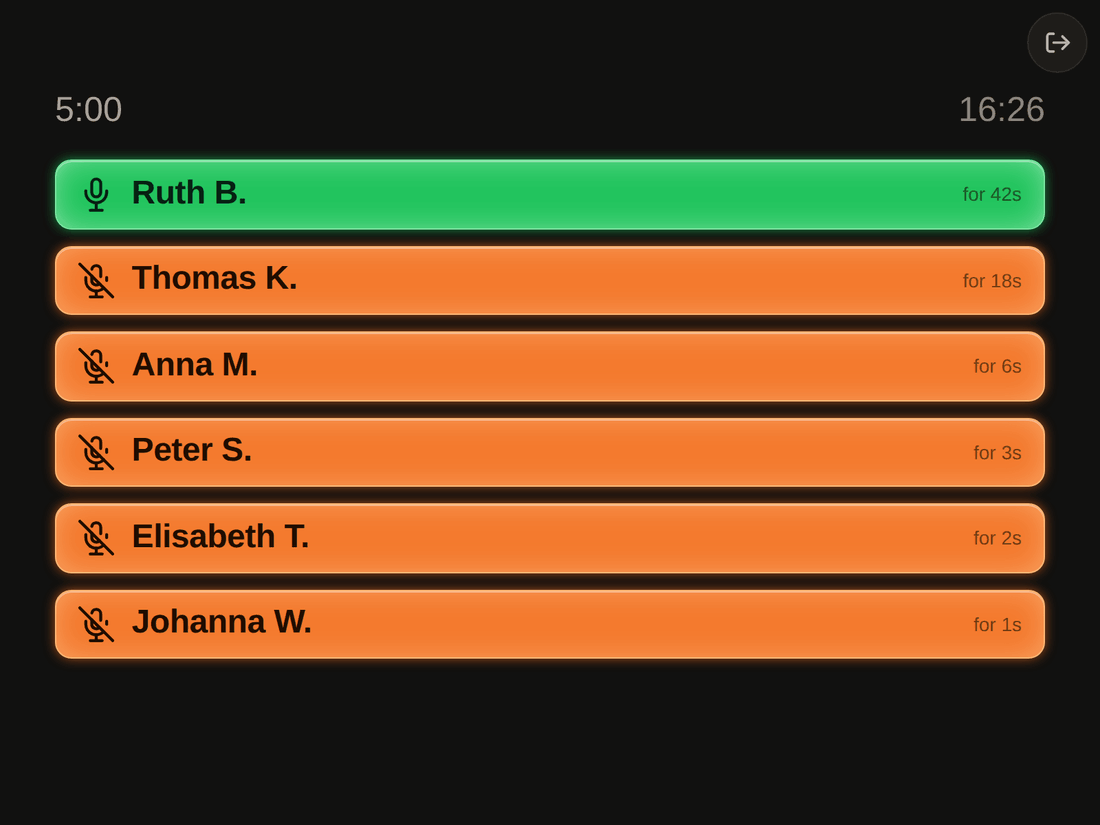
In the meeting, the display appears as a participant called Display, or whatever name you gave it. When someone raises their hand, their name appears on a large tile, along with how long the hand has been up. Whoever raised their hand first is at the top.
Letting someone speak
Tap a tile and Zoom asks that person to unmute. They confirm with one tap and can speak. The display needs host or co-host rights in the meeting for this. You give them in Zoom’s participant list, as you would for anyone else. Without them it still shows raised hands, but tapping does nothing.
Clock and speaking time
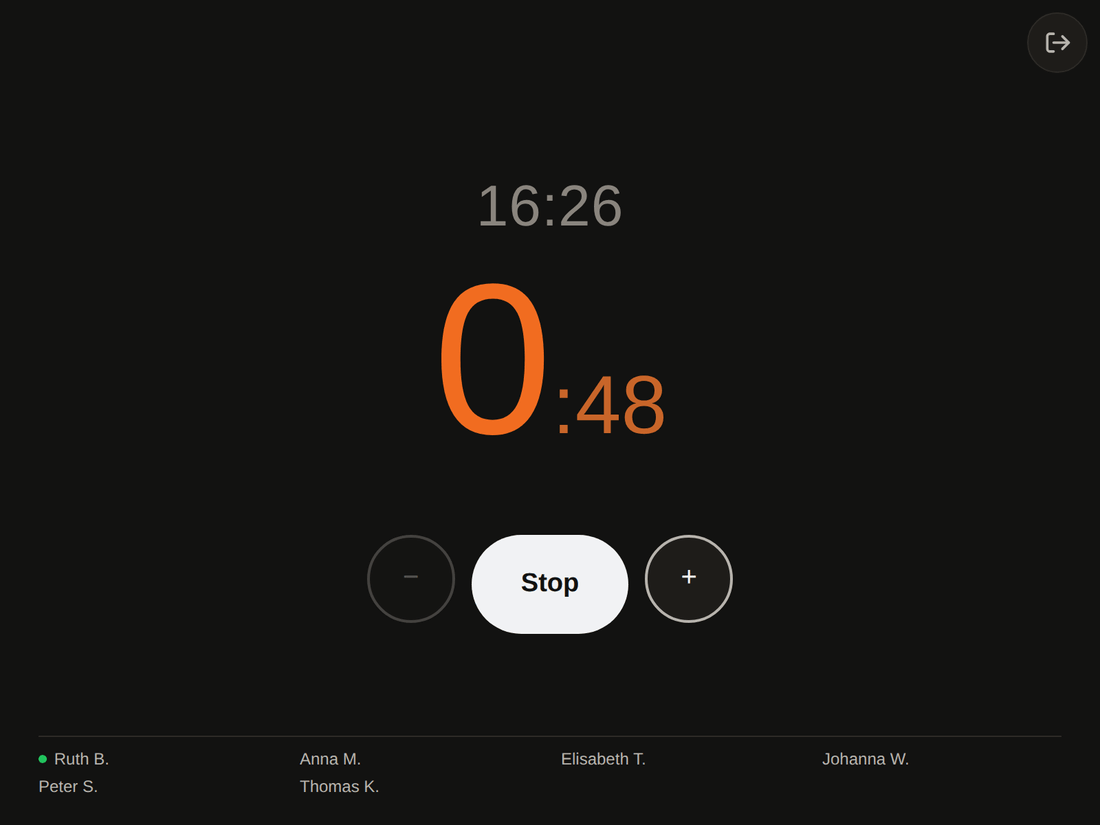
While no hands are raised, the same device shows a large clock. Below it are the stopwatch and timer. The numbers are minutes: tap 10 and it counts down from ten minutes. Start counts up with no limit.
You choose those numbers, and whether the clock shows 24 or 12 hours, in the entry form under the gear at the top right. Both are saved with your meeting ID and come back when you tap it.
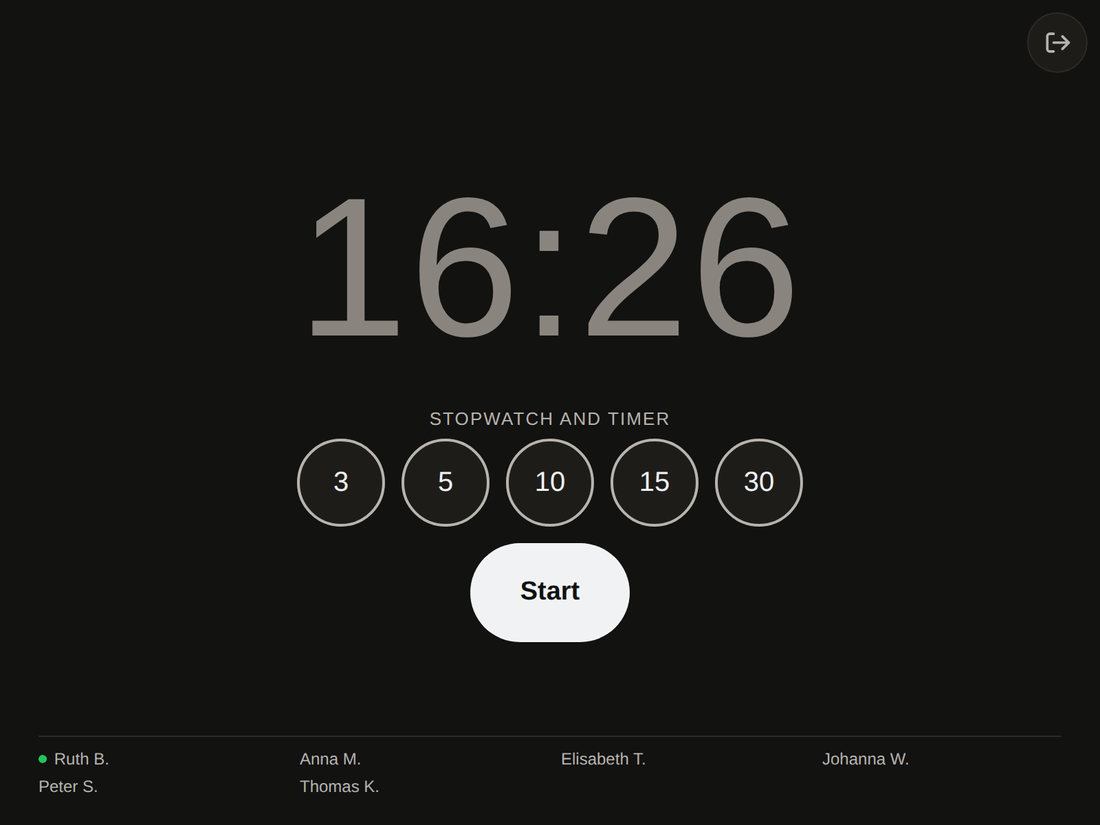
While it runs, − and + take a minute away or add one. In the last minute the time turns orange. At zero it counts the overrun upwards, and a minute later it clears itself, so the next speaker starts with an empty display.
A second device
Any device with the same meeting ID shows the same thing, for example one at the sound desk as well as the one at the front. It needs no further setup.
Add the page to the home screen and it opens like an app, with the meeting ID already filled in. Tap Join and it starts.
Several Zoom accounts on one device
If one device is used for meetings of different Zoom accounts:
- Each account authorizes its own meeting once (step 1).
- Check the meeting ID before your meeting starts. The device shows the one used last. If it belongs to another account, Use a different number takes you back to the form. From the second meeting on, the device lists recent meetings to tap, with their passcodes.
- Simpler still, give each meeting its own icon. Add your number to the
address, as in
meldungen.app/board?meeting=81234567890, and put that on the home screen. Tapping it opens your meeting, no matter who used the device last. - To delete remembered meetings, use the cross next to a number for one, or Forget remembered details under the gear at the top right for all of them.
Language
The display uses the device's language. If it does not have that
language, it uses English. You can change it at the top right of the
entry form. The choice is saved on the device, and you can also put it
in the address: /board?lang=de always opens the German
version.
If something does not work
Find the message that is on the screen:
- In the Waiting Room
- The host has to admit the display, like any other participant.
- Waiting for the host
- The display joins as soon as the Zoom account that authorized it is in the meeting. Usually that means the host has to start the meeting.
- The authorisation has expired
- Tap Authorise again and confirm at Zoom, as you did the first time.
- Zoom is not responding right now
- Nothing to do. There is a problem at Zoom or with the network, and the display keeps trying.
- Connection lost
- Nothing to do. The display reconnects when the meeting is back.
- Connecting … and it stays that way
- Check in this order:
- Has the host started the meeting yet?
- Is the passcode right?
- Was the meeting authorized by the Zoom account that owns it?
- Tapping a tile does nothing
- The display needs host or co-host rights for that. You give them in Zoom's participant list.
3. Switching off
You can withdraw the authorization at any time without asking anyone. Use the Zoom account that granted it:
- Log in to your Zoom account and navigate to the Zoom App Marketplace.
- Click Manage >> Added Apps or search for the “meldungen.app” app.
- Select the “meldungen.app” app.
- Click Remove.
After that, the display can no longer join this meeting and shows Authorise now again.
That is all. Zoom notifies this service, which immediately deletes everything stored for the account: meeting numbers, account identifier and access key. This also meets the right to erasure under Art. 17 GDPR; see the privacy policy for details.
Zoom describes the same steps in its own help under Adding and removing Marketplace Apps for personal use.
If an authorization goes unused for a long time
Zoom's access key is valid for 90 days. The service renews it automatically, even when the display is not used for a while. If renewal keeps failing, the authorization expires. The display then says so and takes you back to authorizing.
Frequently asked questions
Do I have to set this up before every meeting?
No. Once it is set up, it stays that way. After that the device only needs the meeting ID.
We have several meetings. Does that work?
Yes. Authorize each meeting once; after that it only needs its meeting ID.
What can meldungen.app do in our Zoom account?
Only two things: join this account’s meetings and tell which
account it is. It cannot see recordings, chats or contacts, and it
cannot change anything in your account. Zoom reviewed the app before
listing it in the
Zoom
App Marketplace. In Zoom, the two scopes are called
user:read:token and user:read:user.
Can the display switch the microphone on directly?
Only if participants agreed beforehand. That is Zoom’s setting Request permission to unmute participants when scheduling the meeting. Otherwise the person gets a request and confirms it.
What is stored?
On the server: the meeting numbers, an identifier for your Zoom account and an encrypted key from Zoom. With these, the display can join your meeting without you authorizing it again each time. The server does not store names, email addresses or meeting passcodes.
On the device: meeting ID, passcode and display name, as long as Remember these details on this device stays ticked, and the chosen language. These details stay on the device and are never sent to the server.
Names on the display are held in memory only while they are on screen.
Full details are in the privacy policy.
What does it cost?
Nothing. meldungen.app is a private, non-profit project.